No products in the cart.

-28%
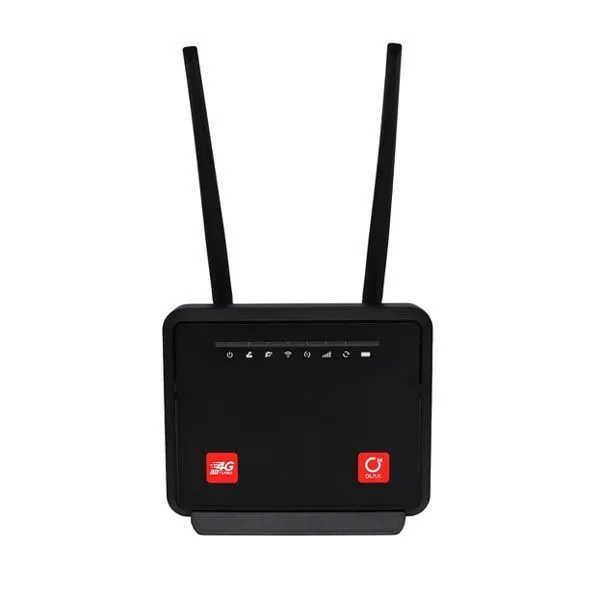
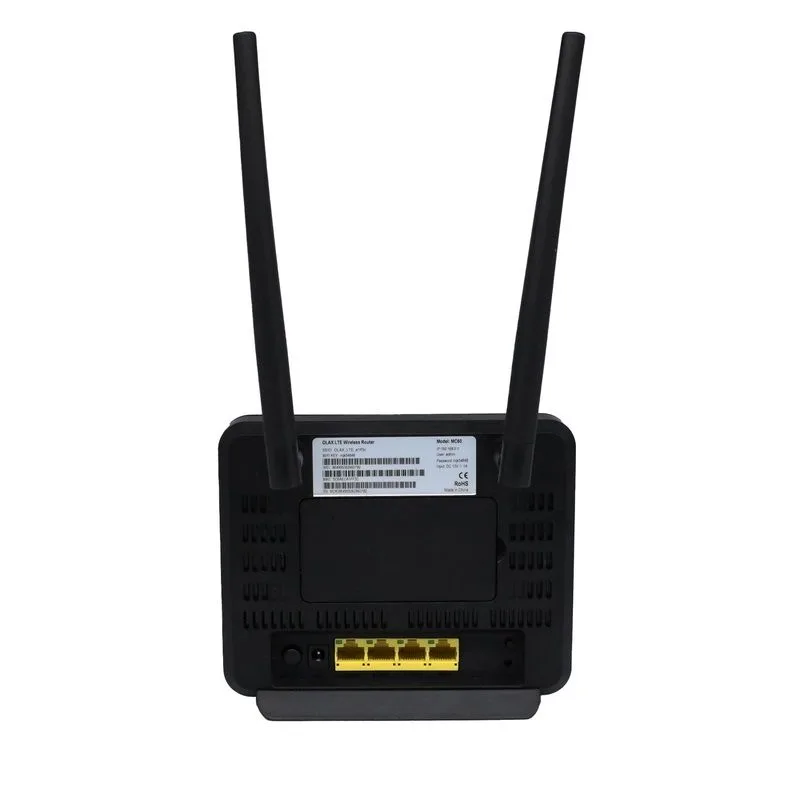
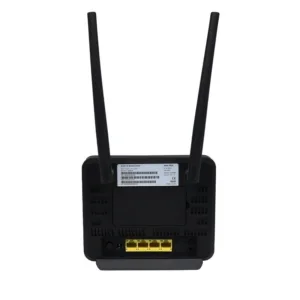

The Olax MC60 is a 4G LTE Cat4 Wi-Fi router, listed by the maker as a 300Mbps model with four LAN ports and one SIM card slot. It suits Bangladeshi homes and small offices that want to share one mobile internet connection across several devices, without running a fixed line to every room.
- Olax MC60 overview
- Key features
- Specifications
- How to use / set up
- Compatibility and what is in the box
- Who should buy it in Bangladesh
- Alternatives in our store
- Warranty and support
- Delivery, returns and ordering
- Frequently asked questions
Olax MC60 overview
The Olax MC60 300Mbps WIFI Speed 4G Router is listed as a new product in our Routers and Pocket WiFi category. According to the listing, it works on 4G/3G/2G networks, supports Wi-Fi 802.11g, 802.11b and 802.11n, and has four LAN ports and one WAN port. The maker lists the product type as a 4G LTE Cat4 WIFI Router, with home as the listed application. For a first read of the product, the specifications table further down this page is the quickest place to check the details.
For a Bangladeshi buyer, the first question is where the internet comes from. The Olax MC60 takes its connection from a SIM card, so it fits best where mobile data is the main connection, a backup for an unreliable home line, or a shared link for a small team. It is not a replacement for every kind of home broadband, and the listing does not discuss coverage in any particular district. If you want a plain-language explanation of the device category, read the general overview of wireless routers on Wikipedia.
Before you buy, do two checks. First, confirm that the Olax MC60 supports the frequency bands your mobile operator uses; the listing gives B1/3/5/7/8/20/28/38/39/40/41. Second, confirm you are ordering the right model, since this page covers one model only. These two checks take a few minutes and prevent most disappointments after delivery.
Key features
Wi-Fi standards and wireless speed
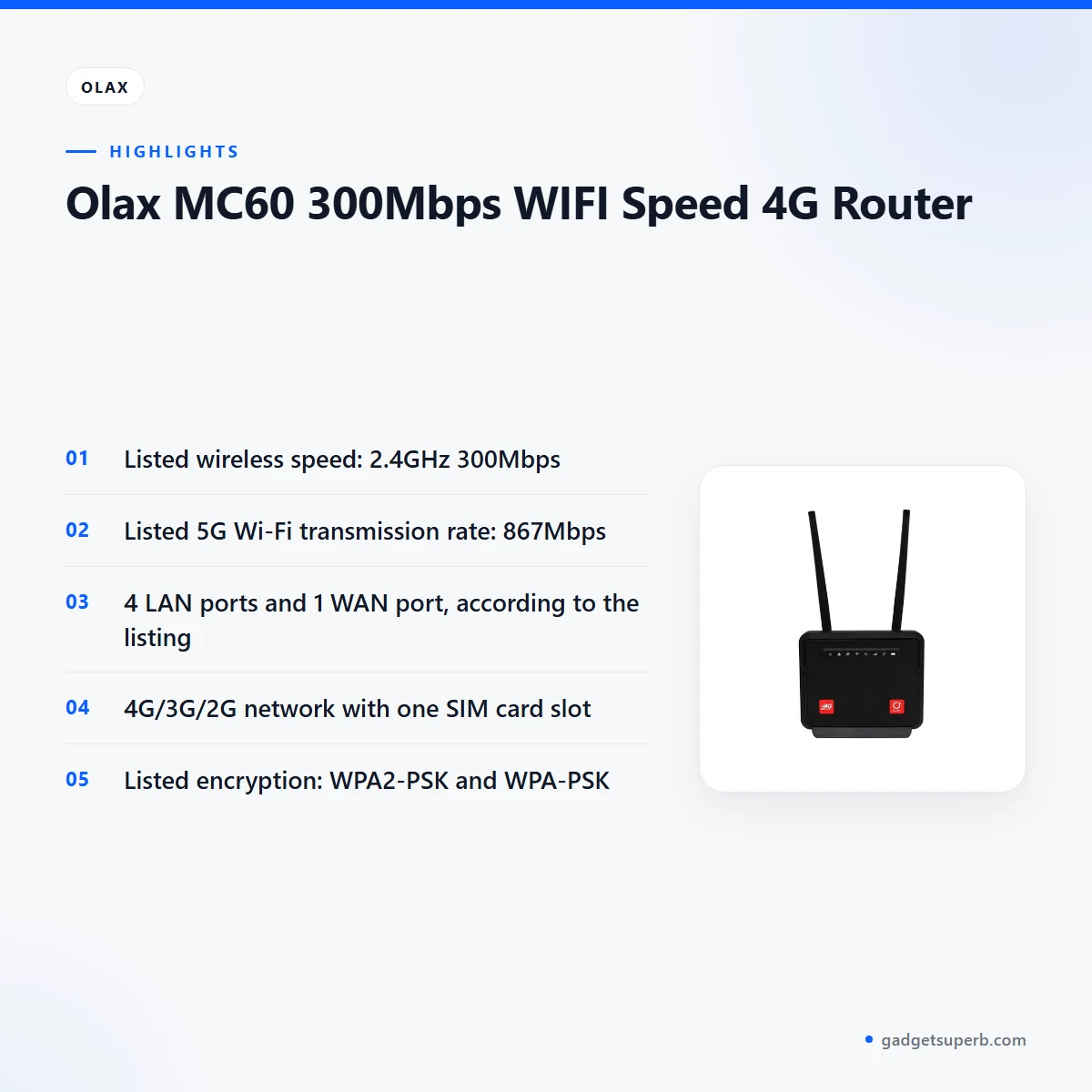
The listing gives Wi-Fi 802.11g, Wi-Fi 802.11b and Wi-Fi 802.11n as its standards and protocols, with a Wi-Fi transmission standard of 802.11n. The wireless speed is listed as 2.4GHz 300Mbps, and the 5G Wi-Fi transmission rate is listed as 867Mbps. For a household, the Olax MC60 suits everyday browsing, messaging, video calls and streaming, where the signal in your room often matters as much as the headline figure. The listed speeds are maker figures, so the speed you see will depend on your signal, your device and how many people are connected at once.
4G LTE network and frequency bands
The Olax MC60 is listed as a 4G LTE Cat4 WIFI Router, with a network of 4G/3G/2G. The frequency bands are listed as B1/3/5/7/8/20/28/38/39/40/41, so compare that list with your SIM provider’s network information before you order. The listing gives one SIM card slot, which means the router takes one SIM at a time. If your operator uses a band that is not in this list, the listing does not confirm that the router will connect, so ask us before you order.
Four LAN ports and one WAN port
According to the listing, the Olax MC60 has four LAN ports and one WAN port, with a wired transfer rate of 10/100/1000Mbps. A cable connection suits a desktop computer, a smart TV or a printer that stays in one room, while Wi-Fi covers phones and tablets that move around the house. Plan your cable route before you set the Olax MC60 in place, and keep cables away from doorways and foot traffic. The listing does not compare wired and wireless performance, so treat the port count as a practical guide to how many fixed devices you can connect.
Security and encryption
The listing gives the encryption type as WPA2-PSK and WPA-PSK. It also lists Supports WPS as Yes and Supports WDS as Yes. When you first set up the Olax MC60, choose a strong Wi-Fi password and keep it private. Shared passwords spread quickly in a busy home or office, so change the password if a guest no longer needs access. The listing does not describe any other security settings, so do not assume features beyond the ones named here.
Functions listed by the maker
The listing names the functions as VoIP, firewall, QoS and VPN for the Olax MC60. It also gives the system as Linux with OpenWRT version, and lists 32 as the user figure. The listing gives home as the application, so the router is best judged against home and small-scale needs. A small office that makes VoIP calls should check the requirements of its own call service, because the listing does not describe call quality. Treat these as listed functions, and check with us if one matters for your setup.
Listing details: status and origin
The listing gives the product status as New, and the place of origin as Guangdong. It also lists Private Mold as Yes, and Support RJ45 as Customized, without explaining what that means. The brand name is listed as OLAX, and the product name as 4G LTE Wifi Wireless Router. Use these details to confirm that this page matches the Olax MC60 you intend to buy, and ask us if you need more information on any of them.
Specifications
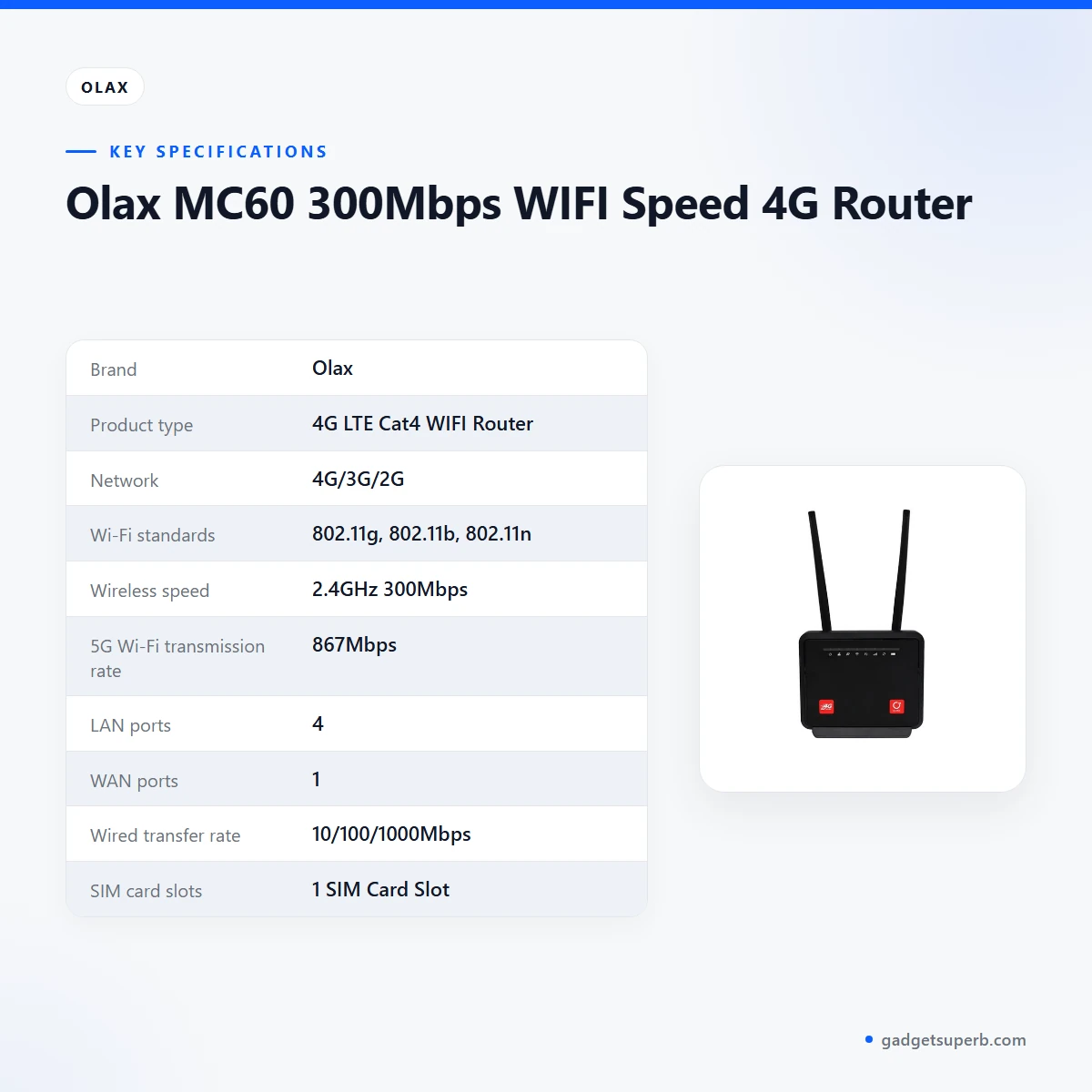
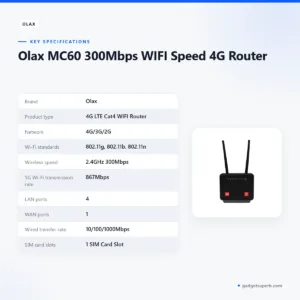
The table below lists the Olax MC60 specifications exactly as the product listing gives them. Use it to check the Olax MC60 against your plans before you order.
| Specification | Listed value |
|---|---|
| Brand | Olax |
| Product type | 4G LTE Cat4 WIFI Router |
| Network | 4G/3G/2G |
| Wi-Fi standards | 802.11g, 802.11b, 802.11n |
| Wireless speed | 2.4GHz 300Mbps |
| 5G Wi-Fi transmission rate | 867Mbps |
| LAN ports | 4 |
| WAN ports | 1 |
| Wired transfer rate | 10/100/1000Mbps |
| SIM card slots | 1 SIM Card Slot |
| Frequency bands | B1/3/5/7/8/20/28/38/39/40/41 |
| Encryption type | WPA2-PSK, WPA-PSK |
| Users | 32 |
| Functions | VoIP, FireWall, QoS, VPN |
These are listed specifications from the product listing.
How to use / set up
Setting up the Olax MC60 is mostly about power, the SIM card and the Wi-Fi password. Place the router where your phone or laptop can reach it comfortably, follow the maker’s instructions to connect power and insert your SIM card, then join the new network from your device. Keep the router clear of clutter so that cables and air flow are not blocked.
Start with a check of the SIM card and the frequency bands before you begin. Then power up the Olax MC60 and let it settle before you connect any devices. Once it is working, change the default network name and password so that only people you trust can join. Write the new details down and keep them somewhere safe, because you will need them when you add a device or reset the network later.
Care and storage are simple. Keep the Olax MC60 in a dry, ventilated spot away from direct sun, and avoid placing it inside a closed cabinet where heat can build up. Dust the vents occasionally with a dry cloth, and unplug the router before you clean it. In the humid months, check the router after heavy rain and keep it off damp surfaces and away from water spills.
Load-shedding can interrupt power in many Bangladeshi neighbourhoods, so plan for it. Keep your phones charged, and if power cuts are frequent, think about how the network will come back when the supply returns. Your own backup options are a decision for you; the listing does not cover power requirements.
The listing does not give a login address for the Olax MC60, so this page does not describe how to reach its settings. Follow the maker’s instructions for that step, and keep any admin password you set in a safe place.
If you are setting up the Olax MC60 for the first time, allow extra time for the SIM and the network to settle. Choose a quiet moment rather than a busy evening, when several people need the connection. If the router still will not connect after you have followed the maker’s instructions, message us with the steps you have already tried so that we can help you narrow the problem down.
Compatibility and what is in the box
The listing confirms Wi-Fi 802.11g, 802.11b and 802.11n. Before you rely on the Olax MC60, check that your phone, tablet or laptop supports at least one of those standards. A device without support for these standards will not join the network in the usual way.
The listing does not state what is in the box, so this page does not list package contents. Check the package when it arrives, and contact us if anything seems to be missing.
The listing describes one SIM card slot, so the Olax MC60 relies on a SIM for its connection. Compatibility with every mobile operator is not confirmed by the listing, so treat the frequency band list as a starting point. Check your SIM provider’s network information against the bands before you commit to a plan with the Olax MC60.
The listing confirms that the Olax MC60 supports WPS and WDS. It does not explain how either feature is set up, so follow the maker’s instructions for those steps.
Compatibility with other devices depends on your phone’s Wi-Fi support, your SIM and your network settings. Keep the router’s model name, your SIM details and your Wi-Fi password written down together, so you can answer questions quickly if you contact us.
Who should buy it in Bangladesh
A household in Dhaka where fixed broadband drops often could use the Olax MC60 as a backup route, provided your SIM and operator give a good signal at home. A flat in a high-rise may have weak signal near the windows, so test the spot you have in mind before you settle on it. The router works best in one fixed location with steady power and a clear view of the mobile signal.
For a small shop, a home workspace or a family in a district town, the Olax MC60 can provide a shared wireless network for a few people. The listing gives 32 as the user figure, so count the devices you expect to connect before you plan the network. A shared network needs a password that you change when people leave, and that is easier to manage when the device count is known.
A family in a district town where mains power is unreliable could use a SIM-based router for a shared connection in one room, so that children’s tablets and a parent’s laptop can share the same link. Keep the router near the best signal in the house, and plan for power cuts as described in the setup section.
A remote worker who needs stable video calls at home should weigh the connection carefully, because the listing does not describe call quality. A home desk with one SIM and a predictable routine is the setting this kind of router suits, and a second person in the house can share the link. Test your own calls for a day or two before you depend on them.
If you mainly need a device that moves between cities, a different type of product may suit you better. The Olax MC60 is best for a single location with a SIM, steady power and a fixed place for the router. Think about your commute, travel days and how often you would move the device before you decide.
A small office in Dhaka that mainly needs wired connections for two or three fixed desktops could use the four LAN ports. It should confirm the number of devices and the expected traffic first, since the listing does not describe performance under load. The Olax MC60 would then serve as one part of a wider plan.
The Olax MC60 may not suit you if you need a router linked to a fixed fibre line, or if your operator’s bands are not on the list. In those cases, ask us before ordering so we can point you to a better match in our range.
Alternatives in our store
If the Olax MC60 does not match your plans, you can compare other products in our store. The Cudy WR1200 AC1200 Dual Band Smart Wi-Fi Router is another router in our range. For a stand, see the Metal Router Stand – Black, which is an accessory rather than a router. If you want a portable option, the Vemo E5783 Plus 4G/5G Portable Pocket WiFi Router – 300Mbps High-Speed Mobile Hotspot with 3000mAh Battery is another pocket WiFi router in our range. For a different wireless router, look at the Ruijie RG-EW1300G 1300M Dual-Band Gigabit WiFi Router. To browse the full range, visit our Routers & Pocket WiFi category.
Each alternative is listed by name and category only, so open its product page to read its own details. Choose the Olax MC60 if its listed network, bands and port count fit your plan, and choose another product if they do not.
Warranty and support
Warranty: 7 Days seller warranty.
Delivery, returns and ordering
When you order the Olax MC60, we deliver all over Bangladesh and you pay cash on delivery. Delivery usually takes 1–3 days inside Dhaka city and 2–5 days outside Dhaka. Plan your setup date around that window, so you have time to check the SIM and the network before you need the connection.
You can return the Olax MC60 within 7 days of delivery. See our Delivery & Returns policy for the full terms.
Questions before ordering: call 09638054751, message us on Facebook Messenger or email care@gadgetsuperb.com.
Before you place an order, check the model name, the frequency bands and the number of devices you expect to connect. If a detail is unclear, send your question first, since it is easier to settle before dispatch than after delivery.
When you call or message us, keep your order details and delivery address handy so that our team can find your order quickly. Outside Dhaka, the 2–5 day window can vary, so keep your setup plans flexible for a few days.
Frequently asked questions
What is the Olax MC60 router?
The Olax MC60 is listed as a 4G LTE Cat4 WIFI Router with a 300Mbps wireless speed for home use. It takes a mobile 4G connection through a SIM card and shares it over Wi-Fi with several devices.
Does the Olax MC60 support 4G networks?
Yes. The listing gives the network as 4G/3G/2G and lists one SIM card slot.
How many users can connect to the Olax MC60?
The listing gives 32 as the user figure for the Olax MC60. Count the devices you expect to join before you choose a shared password.
Which Wi-Fi standards does the Olax MC60 use?
The listing gives Wi-Fi 802.11g, 802.11b and 802.11n. Check that your devices support at least one of these standards.
What frequency bands does the Olax MC60 list?
The listing gives B1/3/5/7/8/20/28/38/39/40/41. Compare that list with your SIM provider’s network information before you order.
How do I log in to the Olax MC60?
The listing does not give a login address, so follow the maker’s instructions to reach the router’s settings. Keep any admin password you set in a safe place.
Is there a warranty on the Olax MC60?
Our listed warranty is 7 Days seller warranty, and this page does not describe what it covers.
Can I pay cash on delivery for the Olax MC60?
Yes. We deliver all over Bangladesh and you pay cash on delivery.
How long does delivery of the Olax MC60 take?
Delivery usually takes 1–3 days inside Dhaka city and 2–5 days outside Dhaka. Timing can vary, so plan around your setup date.
Can I return the Olax MC60 after delivery?
Yes, you can return it within 7 days of delivery. See our Delivery and Returns policy for the full terms.
Does the Olax MC60 support WPS and WDS?
The listing says it supports WPS and WDS. Follow the maker’s instructions for how to use either feature.
How can I ask about the Olax MC60 before ordering?
Call 09638054751, message us on Facebook Messenger or email care@gadgetsuperb.com. Send your questions before you place the order.
Related products
-27%
48 in stock

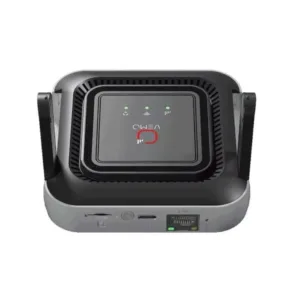
Vemo M6 Pro 300Mbps 4G LTE Pocket Router
Original price was: ৳ 5,420.৳ 3,950Current price is: ৳ 3,950.-23%
66 in stock

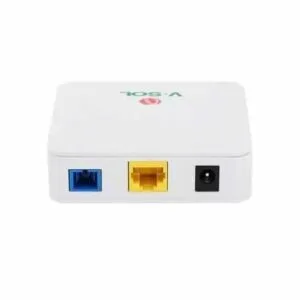
Vsol V2801SG XPON (G/Epon) Single Port ONU
Original price was: ৳ 1,930.৳ 1,480Current price is: ৳ 1,480.-21%
186 in stock
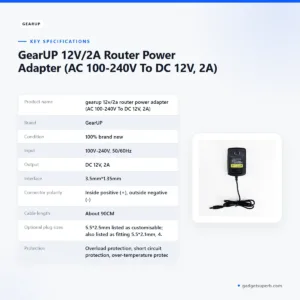

GearUP 12V/2A Router Power Adapter (AC 100-240V To DC 12V, 2A)
Original price was: ৳ 380.৳ 300Current price is: ৳ 300.-23%
50 in stock
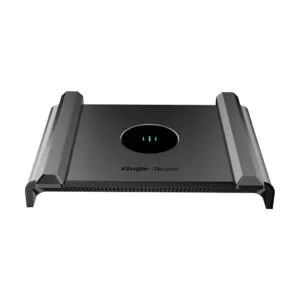
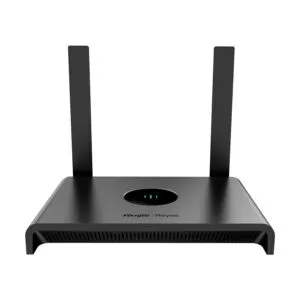
Ruijie RG-EW300N 300 Mbps Wi-Fi 4 Wireless Smart Router
Original price was: ৳ 2,470.৳ 1,900Current price is: ৳ 1,900.-26%
44 in stock

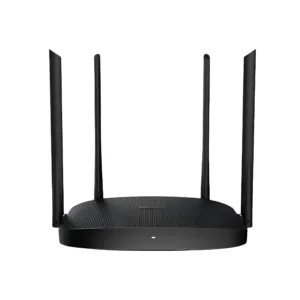
Hikvision DS-3WR12C AC1200 1200Mbps Dual Band WiFi Router
Original price was: ৳ 2,960.৳ 2,190Current price is: ৳ 2,190. Olax MC60 300Mbps WIFI Speed 4...
Original price was: ৳ 7,210.৳ 5,180Current price is: ৳ 5,180.
61 in stock
Reviews
There are no reviews yet.